Cartoon Settings
Display> Cartoon Settings will display the Preview as a cartoon-like image.
The Cartoon Settings command has the following subcategories:
Shading Styles
Comic Book Settings
Geometric Edge Lines
The subcategories are not mutually exclusive, they can work in combination. Try working with a checkmark on one sub-category alone until you get some experience seeing the results before you try combining them. Use your own judgment to decide what combination works best for the look you are trying to achieve.

All three sub-categories can be active at the same time.
Shading Styles
The Cartoon Settings shading styles are only visible when Cartoon or Cartoon w/Line is selected as the Document Style, Figure Style, or Element Style from the Display menu. These Cartoon Settings allow you to choose between the following options for your preview:
One Tone, Two Tones, or Three Tones: Presents a flat filled effect similar to posterizing an image to a level of one, two, or three grayscale values.
Three Tones Plus Hilight: Presents the image in three levels of gray as above plus a highlight area.
Smooth Toned: Presents a smoothly shaded preview without hard boundaries between values.
Note that these styles affect the Preview display only and will not affect the final render. The Preview image can be exported to a file. To export the Preview image, select the white triangle in the upper right corner of the Preview display and then select Export image. See Exporting Images for more information.

Click the white triangle and choose Export Image from the menu that appears.
La Femme and L’Homme have facial body chips that are displayed in the Preview window by default. To hide them during a preview render, you will find a control in the Body actor that turns off the display of the facial, breast, and buttocks control chips. Expand the Controls group in the Body actor, and set the Hide <-- Control Handles --> Show parameter to 0 (zero) to hide the chips.
Comic Book Settings
The Display> Comic Book or Display> Comic Book (Color) commands present a look similar to a comic book illustration, without the need to assign materials that have Toon IDs. There are two Comic Book preview modes: Comic Book, for a black and white result, and Comic Book (Color), for a color result.
The previews include persistent shadowing and improved outlining. Comic Book Settings work best in Texture Shaded display style but they will also work with the other display styles. Use the Cartoon display style with a Cartoon Setting checked and a Comic Book Setting checked if a combination of the two is desired.
There are several ways to enable one of the Comic Book Settings:
Choose Display> Cartoon Settings> Comic Book or Display> Cartoon Settings> Comic Book (Color).
Right-click in the Preview viewport, and choose Cartoon Settings> Comic Book, or Cartoon Settings> Comic Book (Color).
See Comic Book Preview Options below for an additional option.
Geometric Edge Lines
The Display> Cartoon Settings> Geometric Edge Lines command toggles edge lines on or off. Edge Lines surround the figure, like the outline of a comic book figure. Geometric Edge Lines can be used alone or in combination with the Cartoon Settings and Comic Book Settings.
See Comic Book Preview Options for additional options for the Edge Lines.
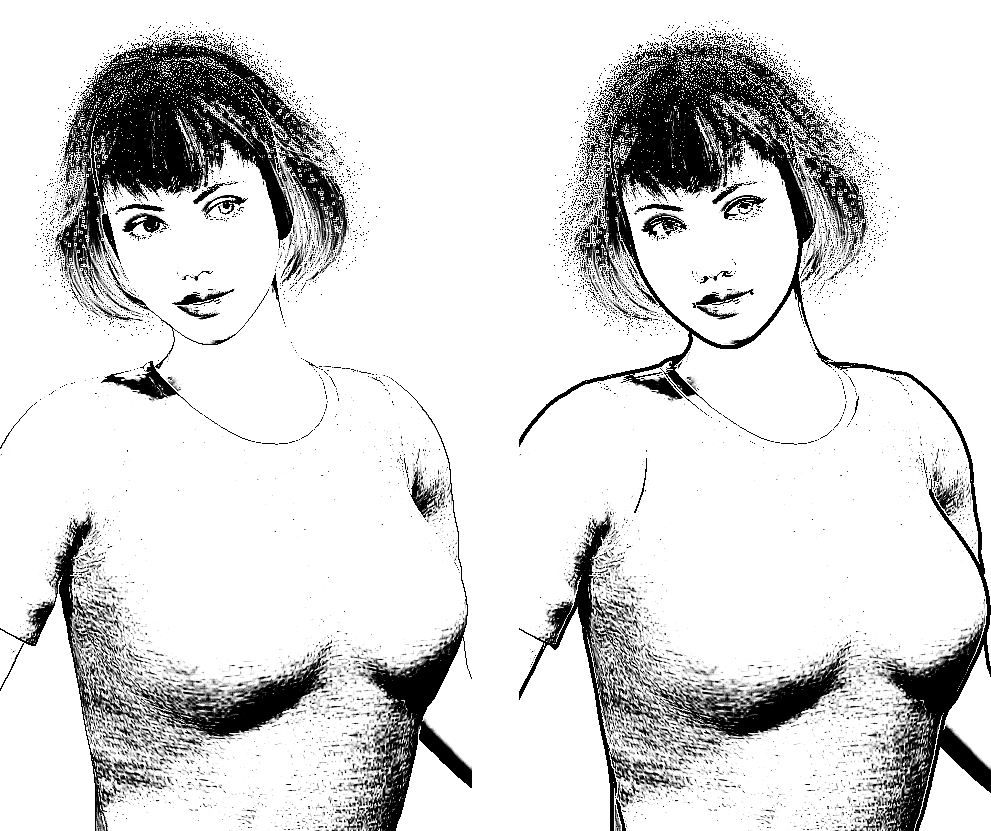
Comic Book without (left) and with Geometric Edge lines (right).

Comic Book (Color) without (left) and with Geometric Edge lines (right).
To implement geometric edge lines, Poser draws the selected shape in black color, resizes it, and then removes the front shape to generate the edge line. Geometric edge lines cannot work with shapes that have transparencies applied to them, because anything that is transparent will show the black color behind it. Where a material has transparency set to On (such as trans-mapped hair or eyelashes), geometric edge lines are disabled.
Comic Book Preview Options
Click the Comic Style Options widget located in the Document Window taskbar as shown in the following figure.

Cartoon Setting options can be selected from the document window taskbar
The Comic Book Preview Options popup displays the following options:
Geometric Edge Lines: Check this option if you want to give the Comic Book preview an outline.
Multiplier: You can increase or decrease the width of the geometric edge line by entering a new value in the field or moving the slider left to decrease or right to increase.
Weld: When enabled, creates smooth toon lines in geometric objects that have unwelded corners (such as a cube).
Comic Book Filter:
None: Turns Comic Book preview off.
Black and White: Creates black and white Comic Book previews.
Color: Creates color Comic Book previews.
Threshold: Use the Comic Book Threshold slider, to adjust the light/dark contrast of the comic book preview.