Colors
You can improve your view of your scene by altering the foreground, background, shadow, and ground colors appearing within the Document window’s Preview tab. The four dots located along the lower-right corner of the Preview tab allow you to control the following colors, respectively:
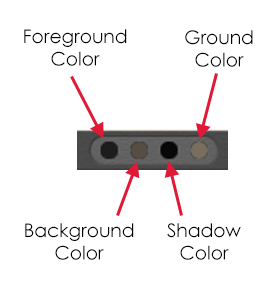
Interface options for foreground, background, shadow, and ground colors.
Foreground: Clicking the Foreground button opens the Poser Color Picker and displays an eyedropper icon. Pressing [OPT]/[ALT] while clicking this button opens your operating system’s standard Color Picker. Position this dropper over the color you wish to select and click it. If you use the operating system’s standard Color Picker, you can alter the color using numeric values. The Foreground color affects the color of the Silhouette, Outline, Wireframe, and Hidden Line display modes (see The Display Controls and Menu).
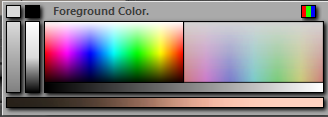
The color picker.
To use your operating system’s Color Picker, press [OPT]/[ALT] while clicking the color or click the red-green-blue button in the top right of the Poser Color Picker.
Background: Change the Background color as described above. This color affects the Poser workspace background.
The final render will always display whatever is attached to the Color channel of the Root Background node. However, if you wish the same image to appear in the preview render, you must also attach it to the BG Picture or BG Movie node. For more information about nodes, please refer to Root Nodes.
Shadow: Change the Shadow color as described above. This color affects the preview shadow displayed in the Preview tab (if enabled).
Ground: Change this color as described above. This color affects the ground plane displayed in the Preview tab (if enabled).