Displaying the Library Palette
If the Library palette is not open, select Window > Libraries.
•Additional library preferences appear in the Library tab of the General Preferences dialog. See Library Preferences for a discussion of the settings you find in this tab.
•Commands to dock or float the library appear in the docking options menu, accessible by clicking the Docking Control square in the upper-right corner of the Library window.
•When the Library palette is floating, you can position and resize it however you like. Drag either side of the Library palette across your screen to the desired width. You can also move the Library palette to a second monitor if desired. For further instructions on arranging palettes, refer to Enabling or Disabling Docking.
•You will notice a library popup widget in the upper-right corner of the Poser interface that allows you to show and hide the library window.
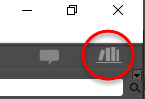
The Library Popup widget.
The Library palette allows you to display your content in a variety of ways. You can display your content in a Tree view, which displays all of the content in your libraries in a hierarchical list. The tree view appears as shown below if the Item List display is turned off
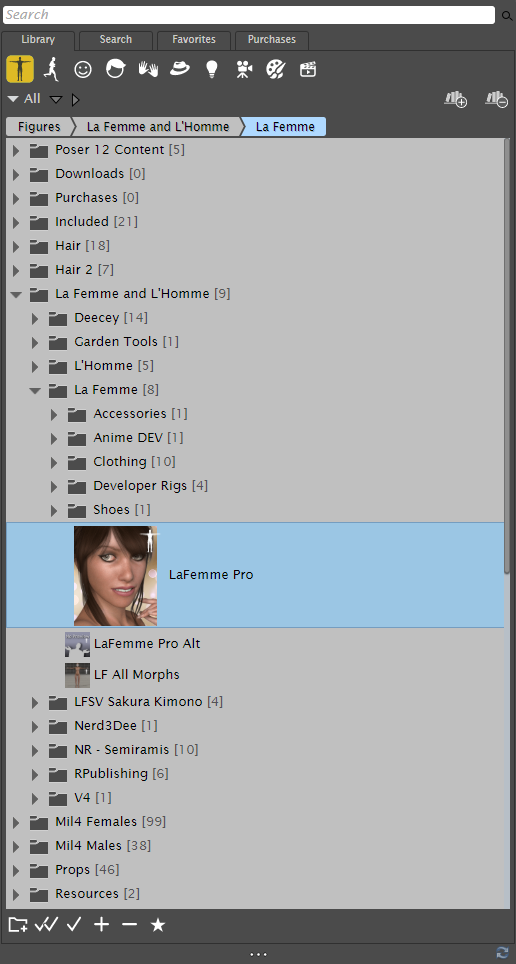
Viewing library items in Tree view.
Alternatively, you can undock the Library palette and display content in the Item List panel.
When the Item List is open, a hierarchical tree appears in the left side of the library. When you select a folder in the tree, its content appears either in a list with a preview thumbnail for each item, or in a multi-column display of thumbnails that adjusts to fill the width of your library window as shown below.

List view displays content as a list (left), or as a grid of thumbnails (right).
The section describes how you can customize the appearance of the Library palette to suit your needs.