Motion Blur Document
As you probably know, fast-moving objects appear blurry. The blur is caused by the fact that our eyes cannot “refresh” quickly enough to see that the object is no longer in its previous location. The 2D Motion Blur feature lets you give your animations the illusion of motion, adding a whole new dynamic and level of realism to your renderings. You can also blur a single frame for test purposes by selecting Render> MotionBlur Document.

Using motion blur.
Using 3D Motion Blur
Poser also providves a 3D motion blur effect that uses render and camera settings to create motion blur. When you shoot a photo of a fast moving object, it appears blurry. The amount of blur is directly related to the length of time that the camera’s shutter remains open while taking the shot. In a similar manner, Poser’s Motion Blur feature lets you give your animations the illusion of motion, adding a whole new dynamic and level of realism to your renderings.
Checking the 3D motion blur checkbox in the FireFly Render Settings option section enables motion blurring for your scene when rendering. When this option is enabled, adjusting the shutter open and close times affects the amount of blurring.

3D Motion Blur option.
Next, adjust the Shutter Open and Shutter Close settings in the Camera parameters dialog:
Shutter Open: The Shutter Open value represents the shutter opening time in fractions of a frame, where 0.0 is the beginning of the frame and 1.0 is the end of the frame. Unlike a real camera shutter, this one opens and closes instantly with zero elapsed time. Regular camera shutters, while extremely fast, require a small time interval to travel between the closed and open positions.
Shutter Close: The Shutter Close value represents the shutter closing time in fractions of a frame, where 0.0 is the beginning of the frame and 1.0 is the end of the frame. Unlike a real camera shutter, this one opens and closes instantly with zero elapsed time. Regular camera shutters, while extremely fast, require a small time interval to travel between the closed and open positions. For example, setting a beginning time of 0.0 and an ending time of 0.5 means the shutter would be open for the first half of a frame.

Camera shutters.
As the amount of time between Shutter Open and Shutter Close increases, the motion blur effect increases. The shutters controls on the camera determine the time relative to the beginning of the frame the shutter will remain open. This is actually the way a real camera would work The blur begins as soon as the shutter opens and continues until it closes.
When using motion blur the blur is created between the current frame and the next frame in the animation.
If you need the blur to interact with a non blur object (catchng a ball for example) the scene should be composed with the subsequent frame in mind.
If you need to produce the effect that a flash has, freezing object in the blur this can be achieved by setting the camera. This can be achieved by setting the Shutter Close time greater than one.
The image below is created by setting the Shutter Close value to 1.5. Note you will need to disable Figure> Use limits or adjust the properties of the shutter dial to allow for limits greater than 1. Higher Shutter Close values will produce a more pronounced effect. The useful range of values to achieve this is 1.1 to 5
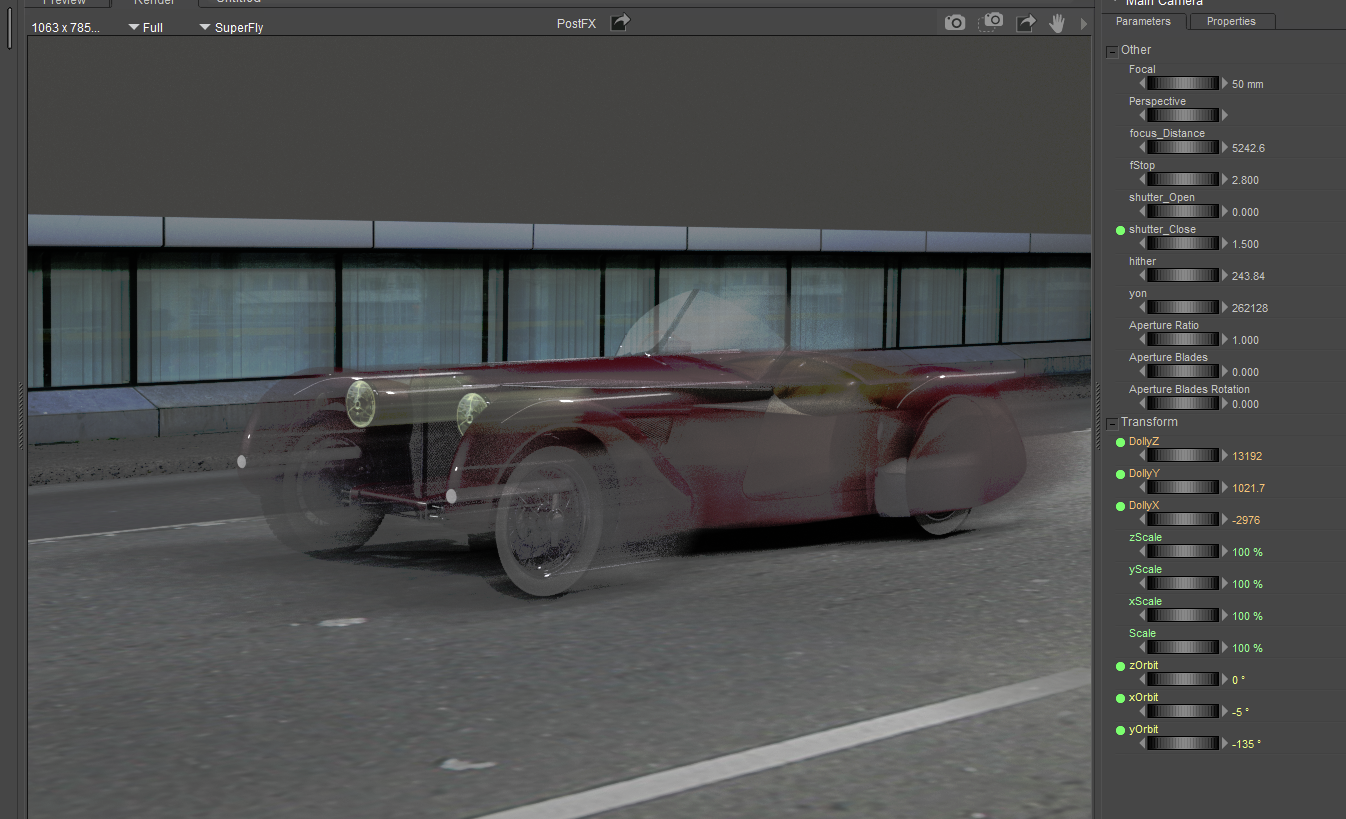
A fast driving car