Options Menu
Clicking on the arrow at the right side of the Title bar opens the Document ’s Options menu. This menu contains the following settings and shortcuts:
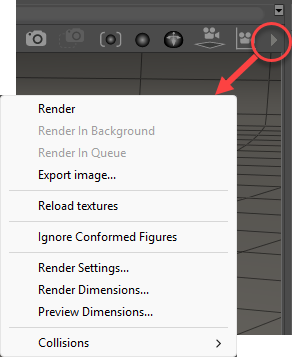
Document Window Options menu.
•Render: Clicking this option will render your entire Poser scene, using the specified in the Render Settings dialog, discussed in The Render Settings Dialog, and the render engine specified in the Render Engine Selection menu on the Render tab. For more information on Poser’s render settings, see Rendering. The render results will appear in the Render tab of the Document.
•Render in Background: Discussed in Render in Background.
•Render in Queue: Discussed in Queue Manager
•Export Image: Selecting Export Image opens a standard Save As dialog that will allow you to save the scene as it appears in your scene preview window as an image file. This can also be accomplished by selecting File> Export> Image.
•Reload Textures: Clicking on Reload Textures will reload into memory all textures for the current scene preview display. This allows you to easily update any changes you may have made in other applications to the currently loaded textures.
•Ignore Conformed Figures is a mode toggle. When this option is checked, any picking of body parts will always pick the base figure's body part instead of the clothing that is conformed to the figure. When this option is unchecked, you will be allowed to select the conformed clothing.
•Render Settings: Selecting Render Settings will open the Render Settings dialog. See The Render Settings Dialog for more information on the Render Settings dialog options.
•Render Dimensions: Discussed in Render Dimensions.
•Preview Dimensions: See Document Window Size.
•Collisions: See Collisions.