Posing Faces with Bones
The Poser 14 Male and Female (L’Homme and La Femme) utilize several bones in the face that allow you to create expressions and change facial features. You control the bones through the use of several control props which can be created and assigned in Poser (see Using Control Props).Bones and associated control props allow you to pose the following areas in the La Femme and L’Homme faces (here listed from the top of the head to the bottom):
The control props shown in the following figure and table are visible by default. You can hide them by selecting La Femme or L’Homme’s BODY actor, and expanding the Controls parameter group. Then, set the Hide <-- Control Handles --> Show parameter dial to zero to hide them, or to 1 to display them.
Facial chips for Paul and Pauline are similar to those for La Femme and L’Homme except they have no earlobe chips. The face chips are hidden in these two figures until you hover over the area that the bone controls.

Locations of facial expression control props.
|
Ref No |
Controls |
|
1 |
Forehead Center |
|
2 |
Brow Center |
|
3, 4 |
Right and Left Outer Brow |
|
5, 6 |
Right and Left Inner Brow |
|
7, 8 |
Right and Left Upper Eyelid |
|
9, 10 |
Right and Left Lower Eyelid |
|
11, 12 |
Right and Left Nostril |
|
13 |
Nose Tip |
|
14, 15 |
Right and Left Upper Cheek |
|
16, 17 |
Right and Left Lower Cheek |
|
18, 19 |
Right and Left Upper Lip |
|
20, 21 |
Right and Left Lower Lip |
|
22, 23 |
Center Upper and Lower Lip |
|
24 |
Jaw |
|
25, 26 |
Right Ear, Left Ear |
|
27, 28 |
Right Earlobe, Left Earlobe |
At that point, you can click the bone and use the editing tools (such as the Direct Manipulation tool) or the parameter dials to rotate the bone in the desired direction.
To undo your most recent change, press Ctrl/Cmd+Z. Use multiple undos to repeat as necessary to undo more than one change.
To restore a facial control prop to its default orientation, click to select the facial control prop and press Ctrl/Cmd+E. This will reset the X, Y, and Z rotate dials (Twist, Side-Side, Up-Down, etc) to zero.
Asymmetical expressions are usually more realistic than symmetrical ones. However, if you want to use symmetry in your facial expressions, make changes to one side of the face first, and then use the Figure> Pose Symmetry> Custom commands to apply the settings to the opposite side of the face. Then add some asymmetry where needed by adjusting individual control props.
You can also use the Scale and Translate tools or parameter dials to affect the areas of the face. For example, you can scale the eyes larger or smaller, and move them farther apart or closer together, or scale the nostrils and the nose tip to create a bigger nose. Translate the nose tip to create a pert nose.
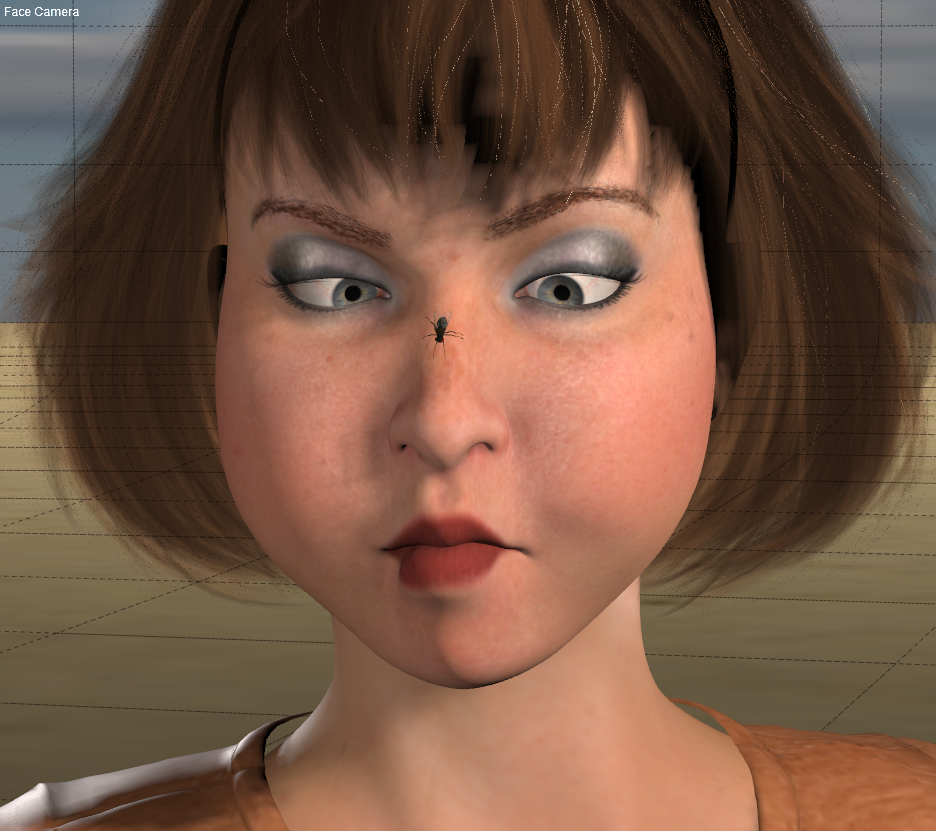
Expressions made with face chips can be very expressive!