Render Tab
Clicking on the Render tab at the top left of the Document displays the main render window, where you can see the rendered results of your Poser scene. The Render tab contains the following controls which are described in the sections that follow:
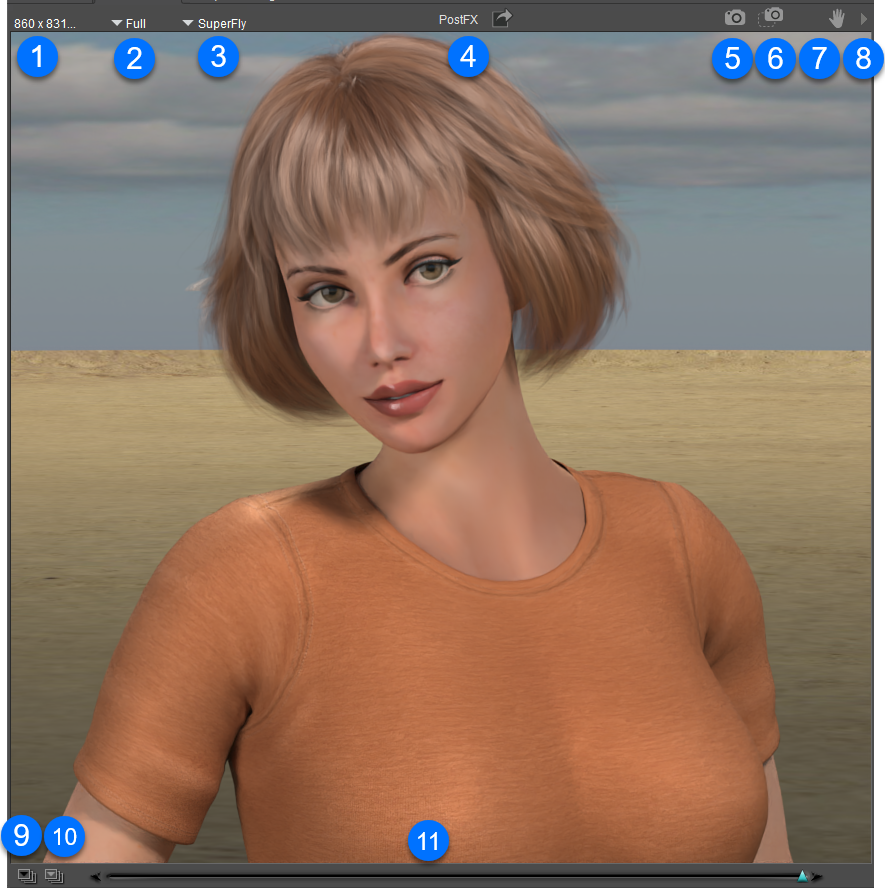
Render Window controls.
Render Dimensions: Discussed in Render Dimensions
Quick-scale Menu: See Quick-Scale
Render Engine: See Render Engine Selection
PostFX: See Applying Post Effects to Renders
Render: see Render
Area Render: See Area Render
Pan: If the image you have rendered is larger than the render window size, you can pan the image by clicking and dragging in the main render window. The Pan symbol at the top right of the Render tab activates this feature. Panning is useful as it allows you to shrink the Document as needed, such as when entering the Material room, and still have access to your entire rendered image.
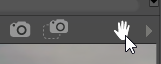
Pan icon.
Render Options menu: Click the arrow at the upper-right corner of the Render tab to view commonly-used render commands.
Render Comparison Image 1: See Render Comparison
Render Comparison Image 2: See Render Comparison
Render Comparison Slider: See Render Comparison