Shadows
Items in your scene can cast shadows on the ground plane, which can help you orient them in 3D space. Disabling shadows can help speed up scene redraw time.
The Shadows button appears in the lower left corner of the Document. Clicking the Shadows button allows you to choose which shadows will be displayed in the preview window as you build your scene:
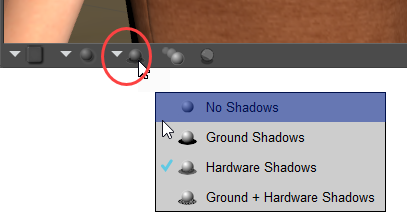
Shadow display options.
No Shadows: Turns shadow display off. This can help improve performance on systems that have limited hardware resources.
Ground Shadows: Displays shadows on the ground only as shown in the following figure.
Hardware Shadows: Displays more realistic shadows in relation to the lights in your scene.
The Enable Hardware Shading option in the Preview tab of the Render Settings dialog must be enabled for hardware shadows to display.
Ground and Hardware Shadows: Displays both ground and hardware shadows (if enabled).
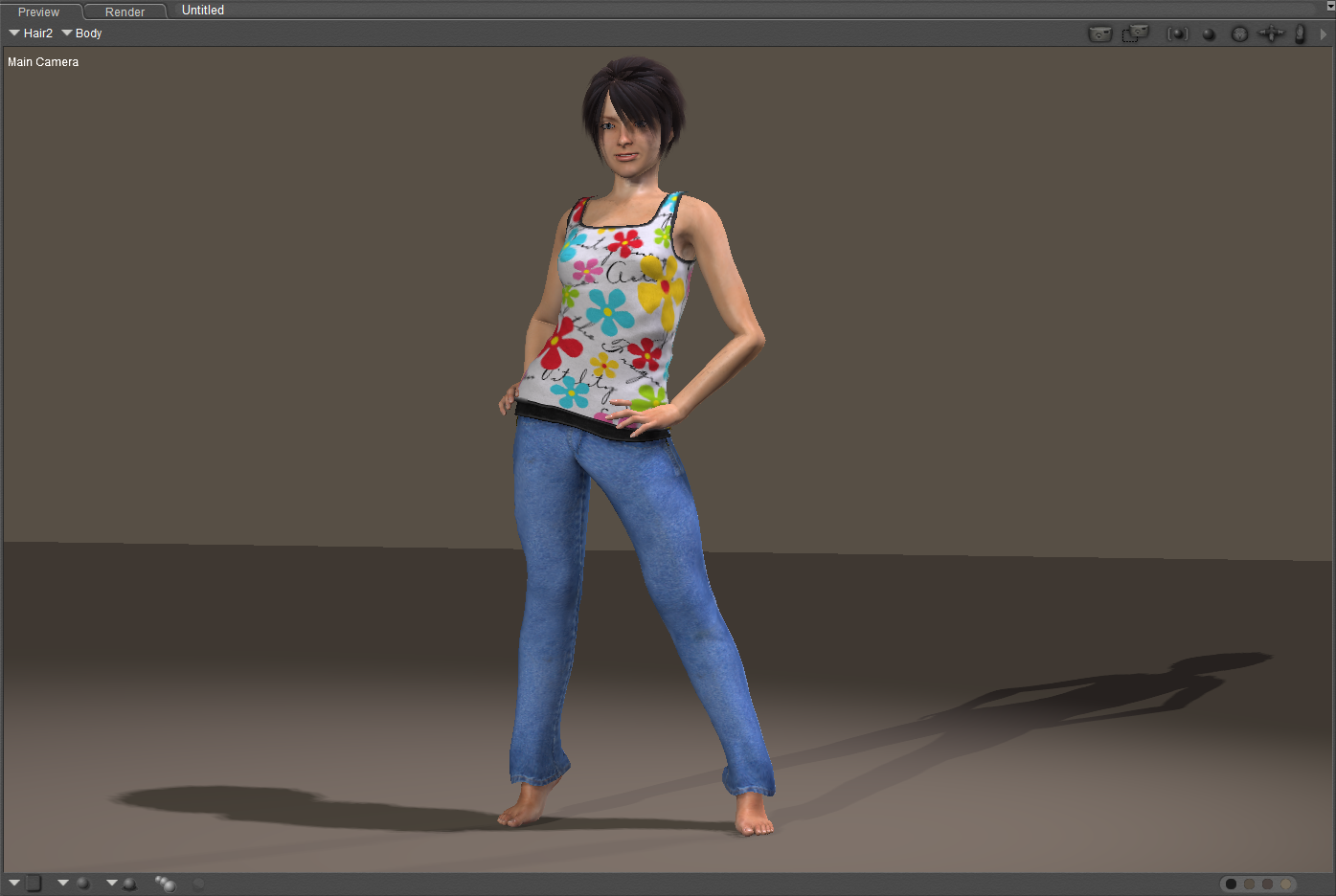
Displaying ground and hardware shadows.