Using the Log Window
The Log window enables you to view a list of ongoing commands as you use them in Poser. You can filter these comments on various criteria (timestamp, category, application commands, group selections, warnings, and debug information). This information can be useful when you are trying to troubleshoot a problem with Technical Support.
To display the Log window, choose Window > Log,or click the Message Log widget in the upper right corner of the Poser interface.
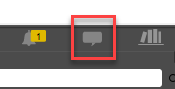
Message Log widget.
The window can be docked or undocked to the workspace by using the palette context menu. Click the square in the upper-right corner of the palette to display the docking options.
If a crash occurs and you can’t get to the log window, you can find the recent history here:
Windows: Users\<user>\AppData\Local\Temp\Poser\12\Poser.log
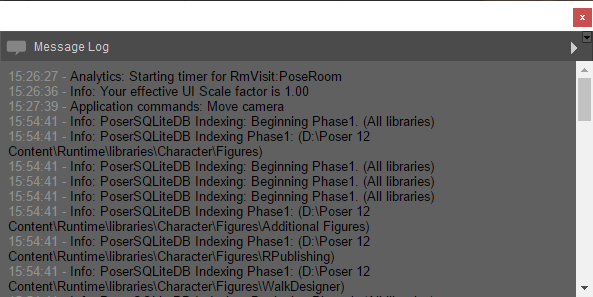
Log Window.
Click the arrow in the upper right corner of the Log window to filter the types of messages that appear in the log. All categories are selected by default.
With the Log Window open, press CTRL/CMD+C to copy all contents of the Log Window into your clipboard. Then you can paste the contents into a text editor to save the contents in the log.
To remove all selections click Clear All. Otherwise, check or uncheck from the following types of information to include in the log: Show Timestamp ; Show Category ; Application commands ; Group selection info ; Warning ; Debug ; FireFly ; SuperFly ; Info ; Purchases ; Analytics.

Logging options.