Simulation Settings
Click the Settings button in the upper section of the Physics Palette to configure general settings for the current simulation.
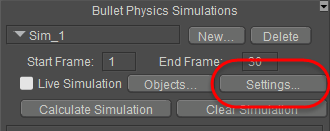
Click the Settings button to configure general settings for the simulation.
The Simulation Settings dialog opens, and you can configure the following properties for the simulation:
.png)
Simulation Settings dialog.
Gravity: Controls the strength of the gravity in the scene. Values below zero pull objects downward, while values above zero act like “anti-gravity” and make objects rise.
Damping: Controls the amount of resistance that your objects have to gravity. Lower values make the object less resistant, and higher values make the object more resistant.
Default Soft Collision Margin: Controls the distance that soft body objects have to be before collisions are recognized. The Default Soft Collision margin is the default value assigned to soft-bodied objects when you add them to a simulation.
Default Rigid Collision Margin: Controls the distance that hard body objects have to be before collisions are detected. The Default Rigid Collision Margin is the default value assigned to rigid-bodied objects when you add them to a simulation.
Steps Per Second: Defines the number of small steps that the simulation will take per second. Increasing the Steps per Second setting will give more stable results and better penetration persistence in your simulations. Calculations will take longer with higher steps per second.
Better Soft Collisions with Clusters (Slower): Improves simulation of soft bodied objects when collisions take place, and can help prevent objects from penetrating through soft-bodied objects. Using clusters on detailed objects can slow calculations considerably.
Enable self-collision on soft/cloth objects: enables simulation of self-collision with cloth, but can be computationally intensive and hang the app for very heavy mesh simulations.
Show Collision bodies in Live Simulation: enables display of visualization of the collision proxies/targets for each simulation during Live Simulation. This is useful for analyzing interactions/penetrations of one object by others objects in the scene/simulation.
Enable Poser Cloth glue dynamics: when checked, the simulation will auto-generate Animated Constraint weight maps that adhere cloth/clothing objects to figure body parts based on proximity to the figure's skin in Frame 1 of the scene. This includes following figure poses and morph adjustments over time using the 'Calculate Simulation' button to generate successive animation frames. Advanced users (content creators) may want to generate these animated constraints once, disable this feature, duplicate/customize the constraints to fine-tune object interactions and delete the auto-generated constraints and save prop with simulations to the Library for potential commercial products.
Glue distance from figure skin: is the distance (in the user's Preference Units: ft, inches, meters, mm) from the figure skin outward that will be considered when calculating the animated constraint weight maps for the simulation.