Texture Atlas Options
When the Compile Texture Atlas option is checked during FBX export (as described in FBX Export Settings and Steps), Poser will combine individual texture maps into as few images as possible, based on the settings that you specify in the Texture Atlas Options dialog. Multiple images may be generated, such as when multiple textures are bound to the same UV space (for example, when diffuse, transparency, and bump maps are used in the same UV space). The following image shows thumbnails for a texture atlas that is created for La Femme. Notice that two images are created, with the bump maps for the skin textures being placed on a second texture.
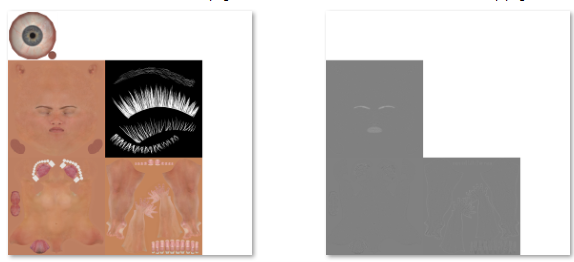
Texture Atlas images created for La Femme.
The Texture Atlas Options dialog will appear before the file is exported. This dialog displays the following options:
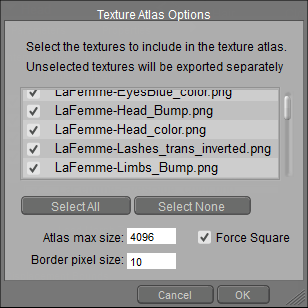
Texture Atlas Options dialog.
List of textures: Displays a list of the texture maps that are associated with the selected item(s).
Select All: Click this button to select all textures in the texture list. You can then click individual items to deselect them.
Select None: Click this button to deselect all textures in the texture list. You can then click individual items to select them.
If two textures occupy the same UV space (such as a diffuse texture, bump texture, or transparency map) they will be selected/deselected together when one of the associated textures are selected or deselected. For example, if you click to select a face texture, the associated bump and transparency maps will also become selected.
Atlas Max Size: Displays the maximum allowable height or width that will be allowed for the texture atlas.
Force Square: Check the Force Square button to generate a texture that is equal in height and width.
Border Pixel Size: By default, the generated textures will extend beyond seam lines by 10 pixels to prevent obvious seam lines. You can increase or decrease this setting with the Border pixel size field.
Higher settings prevent obvious seam lines. If you find later that there are visible seams in your external application, you can increase the Border Pixel Size setting and export the FBX file again.