Keyframe Controls
In most cases, Poser’s automatic animation engine records keyframes as you create animations. Sometimes, however, you’ll want to manually add keyframes, such as when camera animation is disabled. It is important for you to track the status of camera animation, as you could create a series of keyframes without realizing that the animation is off. As mentioned above, if camera animation is disabled, you must manually add keyframes in order to record them. You may also need to fine-tune animations, which may necessitate recording additional keyframes. For example, you could position the figure’s left foot at Frames 10 and 20, with Poser calculating its position for the tween frames. If you wanted to refine this, you could add a keyframe at Frame 15.
The Keyframe controls allow you to quickly and easily add, preview, and remove keyframes within your animation. From left to right, the Keyframe controls are:
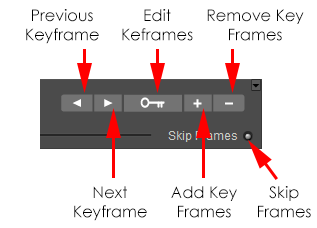
The Keyframe Controls.
Previous Keyframe: The Previous Keyframe button returns to the previous keyframe.
Next Keyframe: The Next Keyframe button advances to the next keyframe.
Edit Keyframes: Clicking the Edit Keyframes button opens the Animation Palette, discussed next.
Add Key Frames: Clicking the Add Key Frames button adds a keyframe at the current frame number. For example, if you have existing keyframes at Frames 15 and 30, you could drag the Scrubber to Frame 22 and insert a keyframe by clicking the Add Key Frames button. You can also insert a keyframe by moving to any frame in your animation and making a change in your scene. This change will automatically be recorded as a new keyframe.
Remove Key Frames: Clicking the Remove Key Frames button removes the currently selected keyframe. For example, if your character’s arm is over his head in Frame 1, down at Frame 15 and out to the side in Frame 30 and you remove the keyframe in Frame 15, the figure’s arm will move out to the side position specified in Frame 30 without dropping to the figure’s side. To delete a keyframe, use the Next Keyframe or Previous Keyframe buttons to locate your desired keyframe, then click the Remove Keyframe button.
Skip Frames: Check this radio button to skip frames during playback. This helps conserve system resources while previewing your animation before you render it.
The Keyframe controls in the are almost identical to their counterparts in the Animation controls. The main difference is that the keyframe controls in the Keyframes palette feature a button that allows you to open the Graph palette.
Show Graph Display: Clicking the Show Graph Display button opens the Graph, discussed in Using Graphs.