Lights Context Menu
For information regarding commands that are specific to lights, see Lighting.
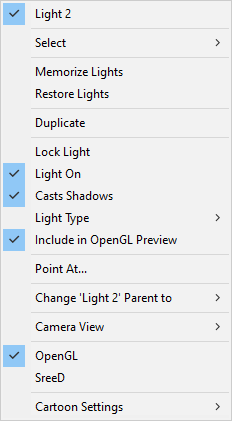
Lights Context Menu.
The top line in the context menu displays the name of the selected light.
Select: Expand the Select menu to select the light or another item from the menu that appears. A check mark appears beside the name of the light when it is set as the current selection.
Memorize Lights: Equivalent to using the Edit> Memorize command. For more information, see Memorize.
Restore Lights: Equivalent to using the Edit> Restore command. For more information, see Restore.
Duplicate: Equivalent to using the Edit> Duplicate command. See Duplicate.
Lock Light: Equivalent to using the Object> Lock Object command. Allows you to lock or unlock the transformations of the selected light. The item is locked when a check mark appears beside the item. See Lock Object.
Light On: Turns the light on or off. A check mark appears beside the command when the light is on.
Casts Shadows: Turns shadows on or off for the selected light. Shadows are on when the option is checked.
Light Type: Allows you to choose the type of light. A check mark appears beside the currently selected light type.
Include in OpenGL Preview: Allows the effects of the current light to display in the preview render in the document window. A check mark appears beside the light if it is included.
Point At: Equivalent to using the Object> Point At command. See Point At.
Change (lightname) Parent to: Equivalent to using the Object> Change Parent command. Allows you to select a figure, prop, camera, or light as a parent. Choose Universe to remove the parent. See Changing a Parent.
Camera View: Equivalent to using the Display> Camera View command. Select the desired camera view from the context menu.
OpenGL: Equivalent to using the Display> Preview Drawing> OpenGL Hardware command. See OpenGL Hardware Acceleration
SreeD: Equivalent to using the Display> Preview Drawing> SreeD Software command. See OpenGL Hardware Acceleration
Cartoon Settings: Equivalent to using the Display> Cartoon Settings command. Select the desired cartoon display mode from the context menu. See Cartoon Settings.