The Poser Library
Poser’s library allows you to quickly select categories and the items contained within them. The default categories are broken down by Poser file type: Figures, Poses, Faces, Hair, Hand poses, Props, Lights, Cameras, Materials and Scene.
When you switch between categories, the Library remembers which item was selected the last time you used a specific category. Click a Category icon to select a Content category. Then drill down in the hierarchical list in the Library list to select the item you want to add to your scene.
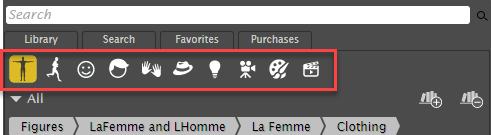
Category icons help you choose a Library category.
You can navigate through the Content pane as follows:
•When you reach a content folder that contains items, you can navigate through the contents in the folder using your arrow keys. Click to activate a selection in the Content pane, then use the Left and Right arrow keys to collapse or expand folders, and the Up and Down arrow keys to navigate through the folder contents.
•Press the Refresh button to refresh the contents. This is useful after you install content while Poser is running.
•The Library popup menu displays nested menus, but you can also click on a folder or category to switch to it, and then highlight an item to load it.
Poser’s hierarchical Library palette provides access to all of the content that ships with Poser such as figures, props, lights, cameras, etc. It has three tabs: the Library tab that provides access to the Poser content categories, the Search tab which allows you to search your content folders for specific files, and the Favorites tab where you can gain easy access to your frequently used or favorite content items. The Library tab contains ten categories, discussed below. Each category is further divided into subcategories. You can create and remove categories and subcategories, and can add and remove content, including your existing content libraries, to/from the Library palette.
•Displaying the Library Palette
•Maintaining Your Library Palette
•Changing the Library Appearance
•Adding Actors to a Library Palette Entry
•Adding Items to Library Palette (Manual Method)
•Adding Extended Details to Library Content
•Deleting Items from the Library Palette
•Installing Content from a Zip Archive
•Loading and Managing Items using the Library Icons