Object Types
After you create a new simulation, you need to set up the simulation objects in your scene. Click the Objects button to open the Select Objects dialog.
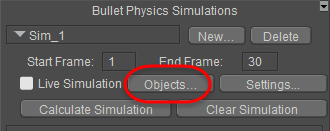
Click the Objects button to define your physics objects.
The Select Objects dialog displays four tabs: Choreographed, Rigid Dynamic, Soft Dynamic, and Cloth Dynamic. As you switch from one tab to the next, you place a check beside each of the objects in your scene that you want to designate as that object type.
Choreographed is used to define stationary or animated objects in your scene that the dynamic objects will collide with. See Choreographed_Objects.
Rigid Dynamic is used for hard-bodied objects that will have physics applied to them. These objects will maintain their shape when they interact with other objects in the scene. See Rigid_Dynamic_Objects.
Soft Dynamic is used for soft-bodied objects that will have physics applied to them. The shape of these objects are affected by collision with other objects in the scene. See Soft_Dynamic_Objects.
Cloth Dynamic objects are similar to soft-bodies objects but have special characteristics such as: cloth-like default properties and special processing logic applied before and during simulations.
.png)
The Select Objects dialog allows you to assign the objects in your scene to one of four types of objects.
When you assign physics objects in your scene, keep in mind that you don’t have to assign every object in your scene as a physics object. For example, if your scene is composed of many walls and furnishings inside a room, the only objects that you need to assign to the current physics simulation are those that will directly come into contact with each other in the simulation that you are configuring.
.png)
Physics Object Types.
Choreographed objects are those which either remain stationary or are animated manually with keyframes. When assigning choreographed objects, you only need to assign the objects that you expect the other physics objects to collide with.
A simple example is shown in the figure that follows. There are seven objects in the scene: the ground, a bowl, two balls, a soft-body ball, the Andy manikin, and a cloth plane. Only three objects in the scene are assigned as choreographed objects: the ground, the Andy manikin, and the bowl in the center. These three items will not move, and the other objects in the scene can collide against them. Note that Poser figure hierarchies can be expanded and body parts can be included individually in the simulation.
.png)
Choreographed objects are those that other physics objects collide against.
Rigid dynamic objects are those which will interact with other objects, but which will maintain their shape when they collide with other objects in the scene. The figure shown below shows two balls that are selected as rigid body objects. They will maintain their shape when they collide against the other objects in the scene.
.png)
Rigid dynamic objects maintain their shape when they collide against other objects.
A soft dynamic object will change its shape or appearance when other objects collide against it. The white ball in the scene below is a soft body. It will squash and stretch in response to its collision with the other balls, bowl and ground during simulation.
.png)
Soft dynamic objects change shape when they collide against other objects.
A cloth dynamic object can change its shape or appearance when it collides with itself or other objects. A very simple example is Poser's 'Square Hi-Res' prop primitive, as shown above the shoulders of the Andy manikin figure.
.png)
Cloth dynamic objects inherit cloth-like properties and special processing logic before and during simulations.
Simulations
Clicking the 'Live Simulation' checkbox on the 'Physics/Cloth' palette will run the physics simulation and result in a modified scene as shown below. Click 'Live Simulation' again to stop the simulation. Click 'Clear Simulation' to return scene objects to their position before the simulation started.
Use the 'Calculate Simulation' button to capture the successive steps of the simulation into the scene's animation time-line
.png)
Scene after running Live Simulation including cloth draping naturally around Andy. There is already Poser Cloth Glue
magic at play here adhering the cloth to Andy. More on this later.