.png)

They say that in the right light, everything becomes extraordinary. In Poser, that couldn't be more true. With light emitters, artists can transform ordinary scenes into stunning, atmospheric works of art.
One of Poser's powerful features is its flexibility with lighting. Virtually any object can become a light source, and even individual materials can be configured to emit light. In this tutorial, we'll turn a regular material into a light source but to unlock the full potential of light emitters, however, it's important to understand how Poser's material root nodes work and how they influence your render.
Step 1: Select the Material
Choose the object you want to glow and open the Material Room.
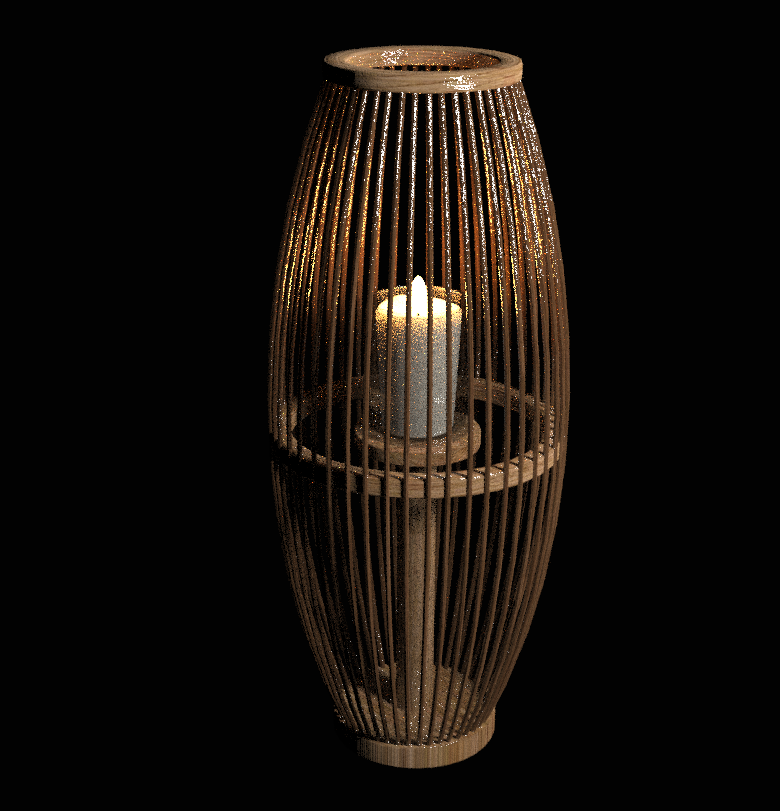
For this example we'll be using the lantern from the Modern Apartment - Bedroom Set that is included in the content with the purchase of Poser. Select the flame material that you want to emit light. In other cases it could be a glass, bulb, or even a sign.
Step 2: Choose Your Root Node
Before setting up your emitter, it's helpful to know which material root node you're working with. Poser allows you to create glowing materials using PoserSurface, PhysicalSurface, or CyclesSurface.
For beginners, don't worry too much about the technical differences. The basic goal is the same: create a material that emits light.
The PoserSurface root node is the default material you'll find on most objects and is the easiest place to start since it can be used with both the FireFly and SuperFly render engines.
To create an emitter just select the material you want to glow.
Locate Ambient_Color and choose your glow color.
Increase Ambient_Value to control the brightness. For example, a value of 1.0 equals 100% strength. If increasing the intensity causes the color to appear washed out, you can compensate by darkening the Ambient_Color setting.
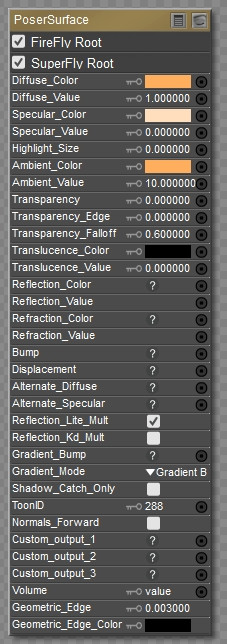
This method is ideal for beginners and works well for simple glowing effects such as candles, lanterns, fantasy crystals, and illuminated screens.
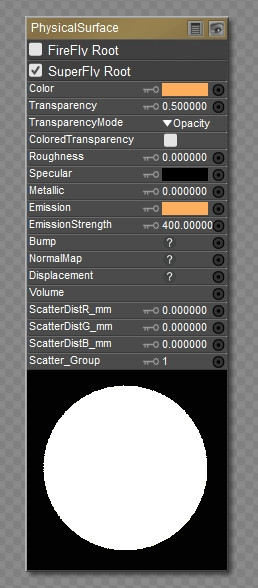
Set the Emission Color to the desired glow color.
Increase the Emission Strength until the material emits the amount of light you want.
PhysicalSurface is often the preferred choice when rendering in SuperFly because it produces realistic lighting and energy-conserving materials.
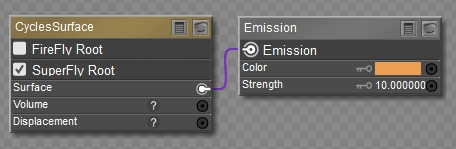
To create an emitter select the material.
Locate the Emission Color setting.
Choose a color for the glow.
Increase the Emission Strength value until the material becomes bright enough.
CyclesSurface is a great choice for effects such as neon signs, glowing magical objects, futuristic lighting, and other scenes where you want the emitter to contribute noticeable illumination to the environment.
If you're just starting out, PoserSurface is the simplest option and a great way to learn the basics of glowing materials.
If you're rendering with SuperFly and want more realistic lighting, try PhysicalSurface or CyclesSurface and use their built-in emission controls.
The good news is that all three can produce beautiful glowing effects, so don't be afraid to experiment and see which workflow feels most comfortable for you.
Start by experimenting with a simple prop and increasing its Ambient_Value. Seeing how the emitted light affects nearby objects is one of the fastest ways to understand how light emitters behave and how dramatically they can enhance your renders.
Light emitters work especially well for:
Lanterns
Street lights
Computer monitors
Television screens
Magic crystals
Energy weapons
Neon signs
Fantasy portals
Try applying different colors and strengths to discover how dramatically a glowing material can change the mood of your artwork.
Remember, some of the most impressive lighting effects in Poser don't come from adding more lights. Sometimes all it takes is turning an ordinary material into an extraordinary source of light.