
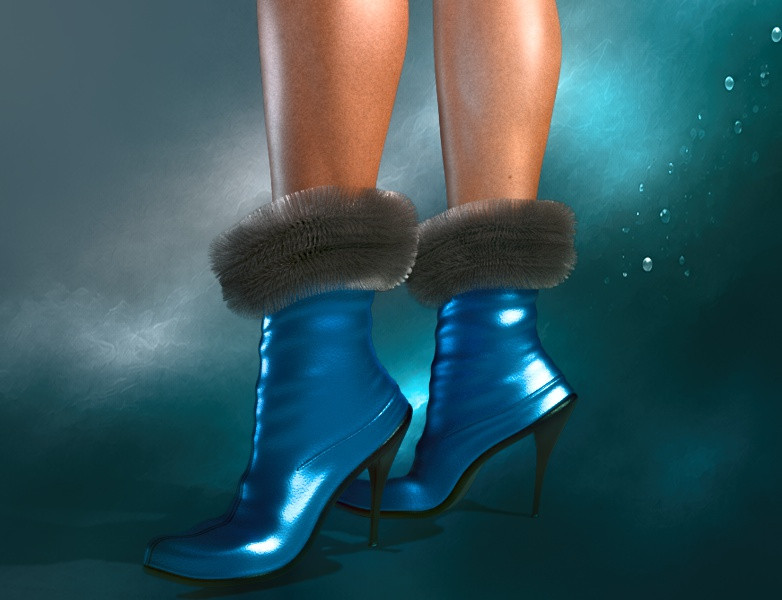
When you think of Poser’s Hair Room, hairstyles may be the first thing that comes to mind—but this versatile space has plenty of other creative possibilities waiting to be explored! With a little imagination, the same tools used to create flowing locks can add soft, fuzzy details and unexpected textures to your scenes.
In this tutorial, we’ll start with a fun little project: adding a cozy fur trim to a pair of boots. It’s a great way to get familiar with the Hair Room and discover just how much a small detail can add to your render. Let’s get growing!
Select the prop or figure you want to grow hair on. If you’re working with a figure, make sure you’ve selected the specific body part where you want the hair to grow.
Click New Growth Group. When prompted, you can keep the default name or choose one that helps you identify it. For this example, we’ve named ours FurL.
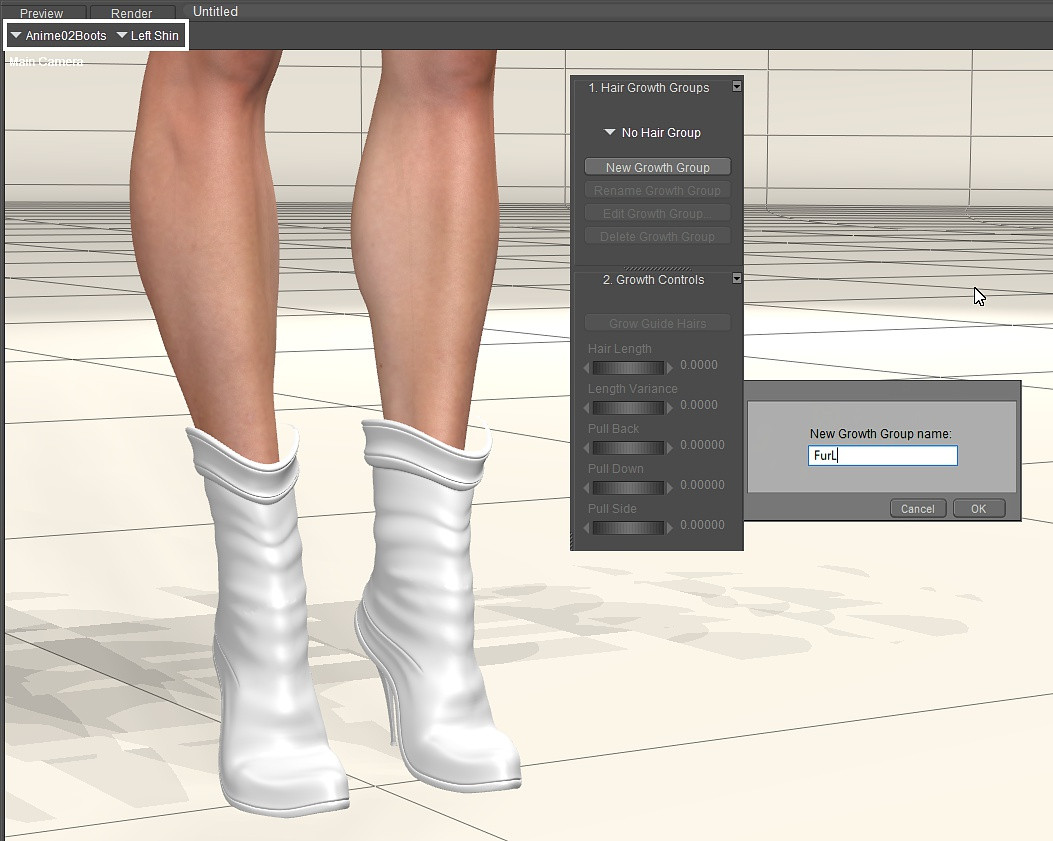
Next, edit your new Growth Group to define the area where you want the hair to appear.
Many props have predefined material zones that make this easy. If yours doesn’t, you can create your own using the Grouping Tool (more on that coming soon!).
With FurL selected, you’re ready to add the area you want to cover.
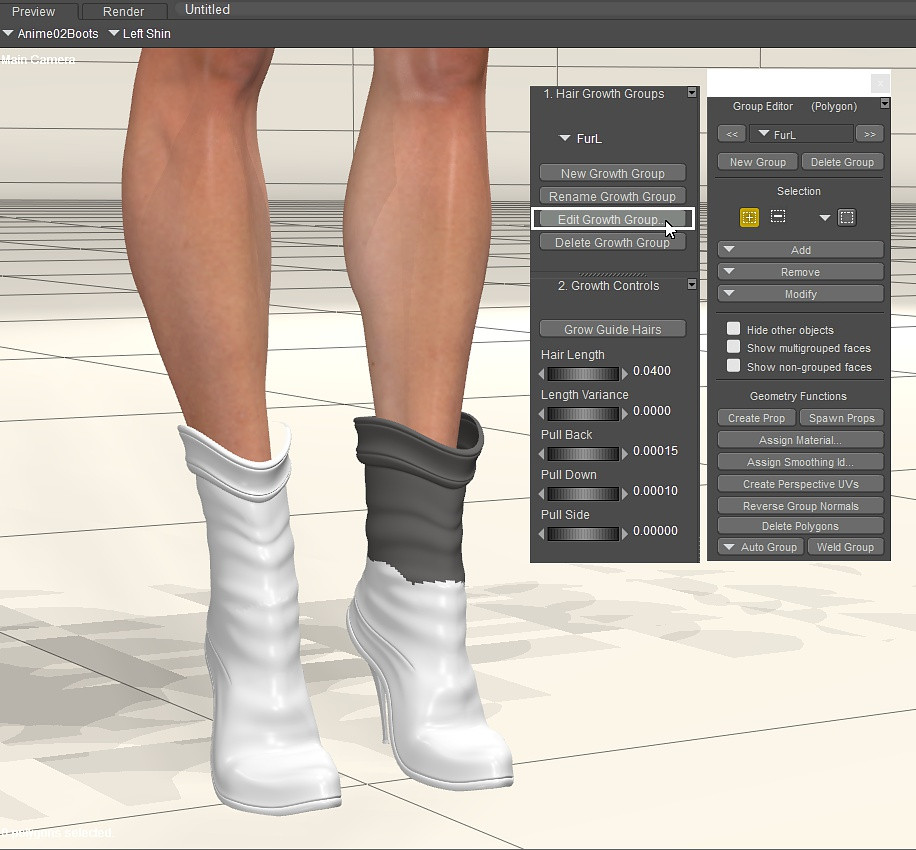
Click Add, and you’ll be prompted to choose what to select. If your prop has separate material zones you’d like to use, choose Material, then select the appropriate zones.
In this example, we’ve selected the boot’s Cuff and CuffTrim materials. The selected areas now appear in red, showing exactly where the hair will grow.
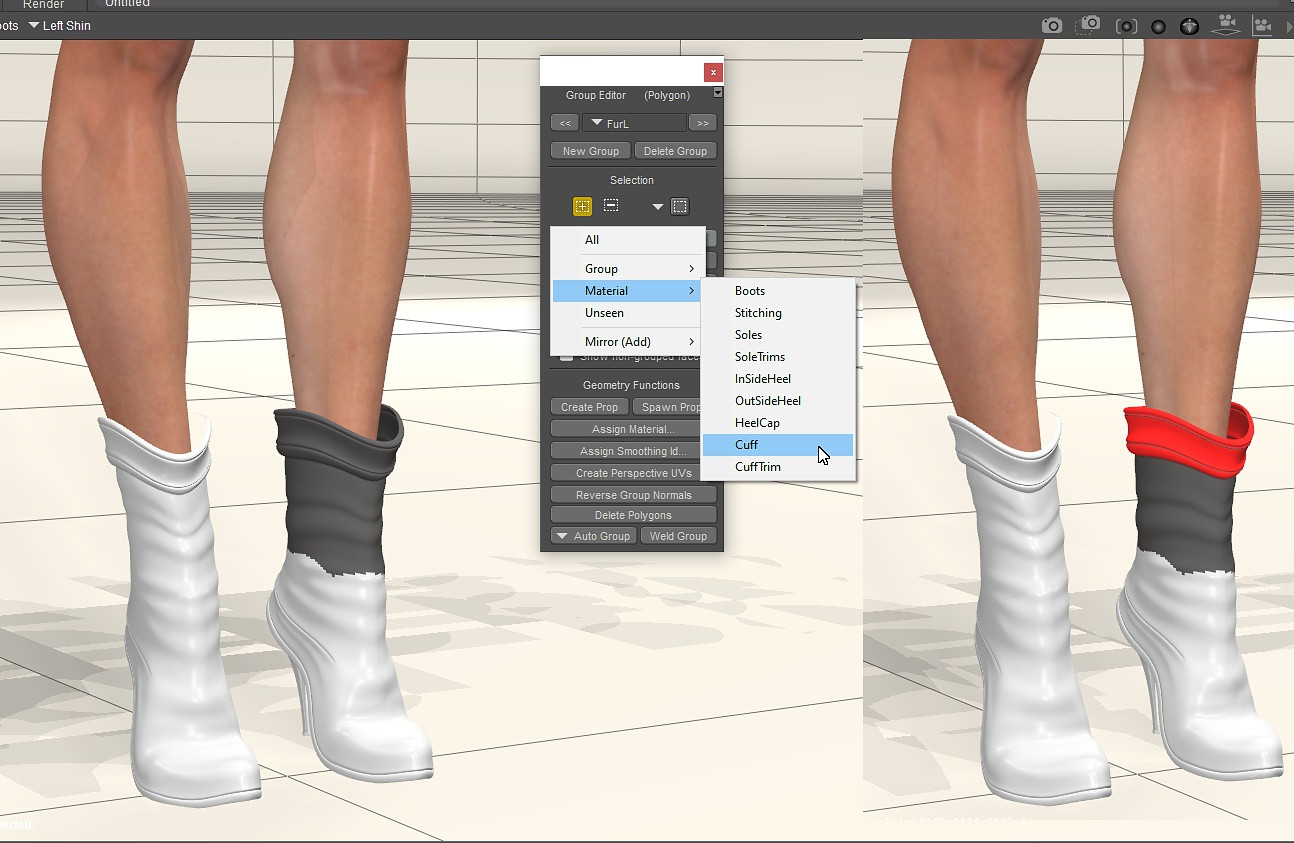
Head to Growth Controls and click Grow Guide Hairs.
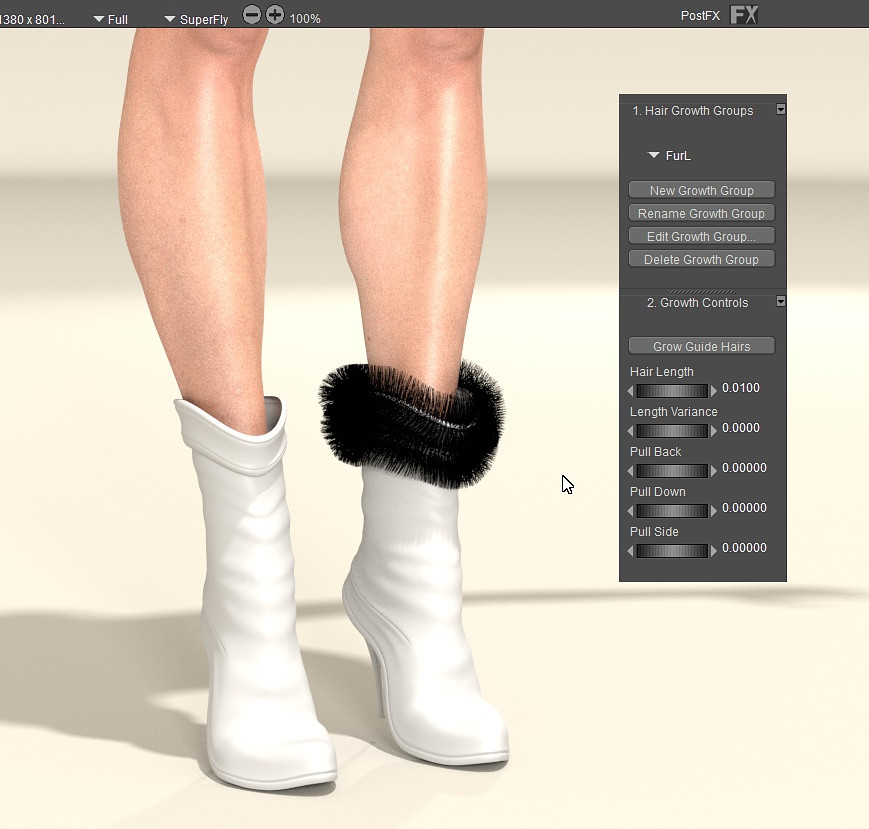
If your Preferences are set to use native Poser units, the default Hair Length is 0.0400 which is a little too long for the trim in this example. Change it to 0.0100 to achieve the shorter fur shown in the image.
Without adding any Length Variance or adjusting the Pull directions, you’ll get a soft, fuzzy trim. For a shaggier look, try adjusting Pull Down slightly.
You can now set the hair materials to suit your design.
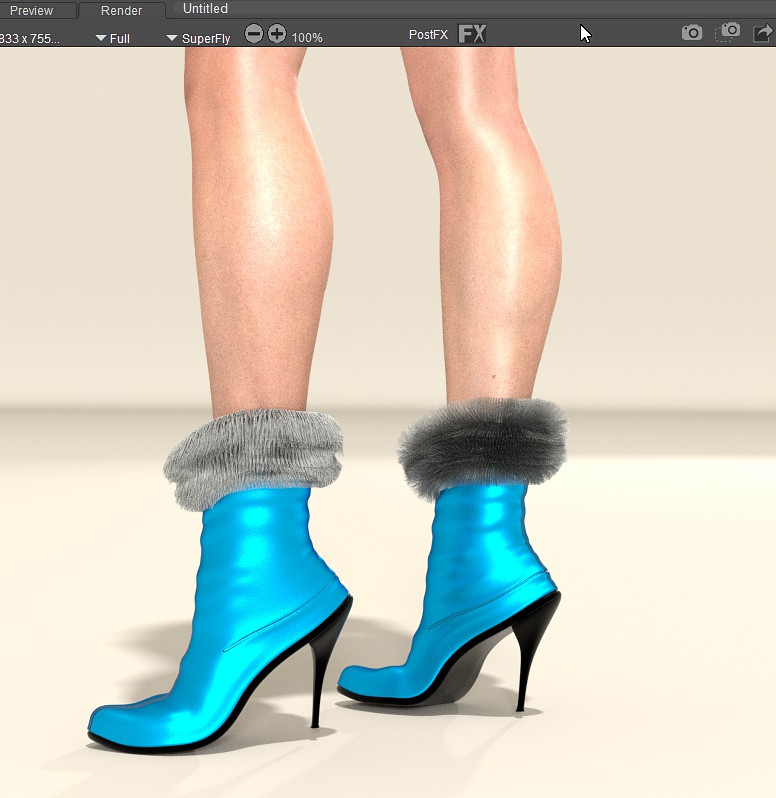
In the final image, the left boot has a small Pull Down adjustment so you can see the difference.
The Poser 14 software can be downloaded at: https://www.posersoftware.com/downloads. A 21-day free trial is available.
Owners of a Poser 11, 12 or 13 license can purchase an upgrade to Poser 14 here: https://www.posersoftware.com/store/products/974.
First time buyers can purchase a full Poser 14 license here: https://www.posersoftware.com/store/products/973.
The Poser 13 software can be downloaded at: https://www.posersoftware.com/downloads.
Owners of a Poser 11 or 12 license can purchase an upgrade to Poser 13 here: https://www.posersoftware.com/store/products/293.
First time buyers can purchase a full Poser 13 license here: https://www.posersoftware.com/store/products/292.