.png)
After exploring how strong composition shapes graphic‑novel storytelling in our previous article, let’s expand that foundation by looking at features that can dramatically influence the style and mood or your graphic novel.
Once your panels are composed, the next step is defining the visual style of your graphic novel. Poser 14 offers a flexible rendering environment that supports a wide range of aesthetics, from crisp comic‑book lines to soft, painterly textures. For beginners, this is an opportunity to explore different looks without needing advanced technical knowledge. The key is to choose a style that complements your story and remains consistent across your pages.
A graphic novel’s style communicates genre, mood, and personality before the reader even processes the dialogue. A noir detective story might use heavy shadows and stark contrasts, while a whimsical fantasy tale might lean toward soft colors and textured shading. Probably the most underused feature in Poser is the Sketch Style Render setting. Although it has been available since Poser 4, many users haven’t fully explored its potential. However, the Sketch Designer is a remarkably versatile tool, allowing you to create a wide range of natural‑media‑inspired renders.
So, where to start?
The Sketch Render appears as a tab in the Render Settings window, where you’ll find thumbnails for 10 of the included presets and the Sketch Designer button at the bottom to open up a more detailed panel—but for many users, that’s where the exploration ends.
Once your panels are composed, the next step is defining the visual style of your graphic novel. Poser 14 offers a flexible rendering environment that supports a wide range of aesthetics, from crisp comic‑book lines to soft, painterly textures. For beginners, this is an opportunity to explore different looks without needing advanced technical knowledge. The key is to choose a style that complements your story and remains consistent across your pages.
A graphic novel’s style communicates genre, mood, and personality before the reader even processes the dialogue. A noir detective story might use heavy shadows and stark contrasts, while a whimsical fantasy tale might lean toward soft colors and textured shading. Probably the most underused feature in Poser is the Sketch Style Render setting. Although it has been available since Poser 4, many users haven’t fully explored its potential. However, the Sketch Designer is a remarkably versatile tool, allowing you to create a wide range of natural‑media‑inspired renders.
So, where to start?
The Sketch Render appears as a tab in the Render Settings window, where you’ll find thumbnails for 10 of the included presets and the Sketch Designer button at the bottom to open up a more detailed panel—but for many users, that’s where the exploration ends.
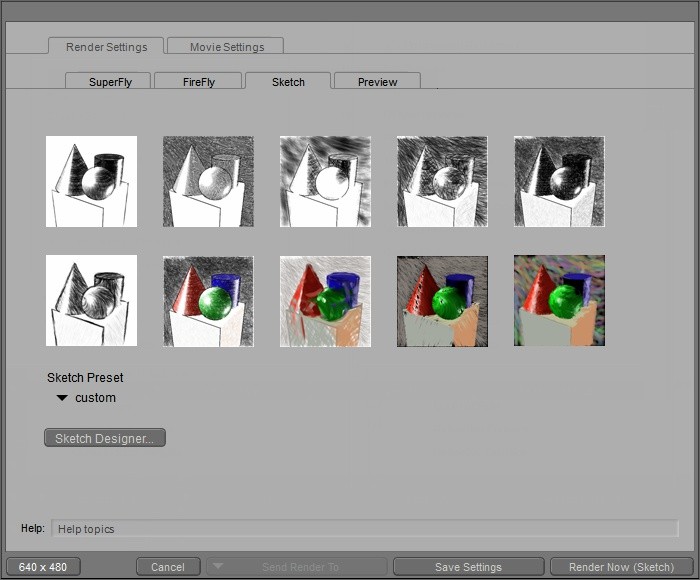
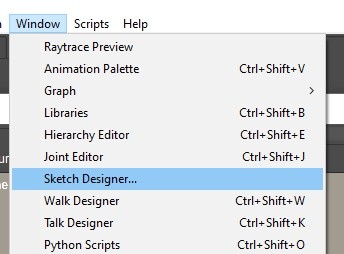
You can also access the Sketch Designer from the Window menu, which opens a panel containing all adjustable parameters..
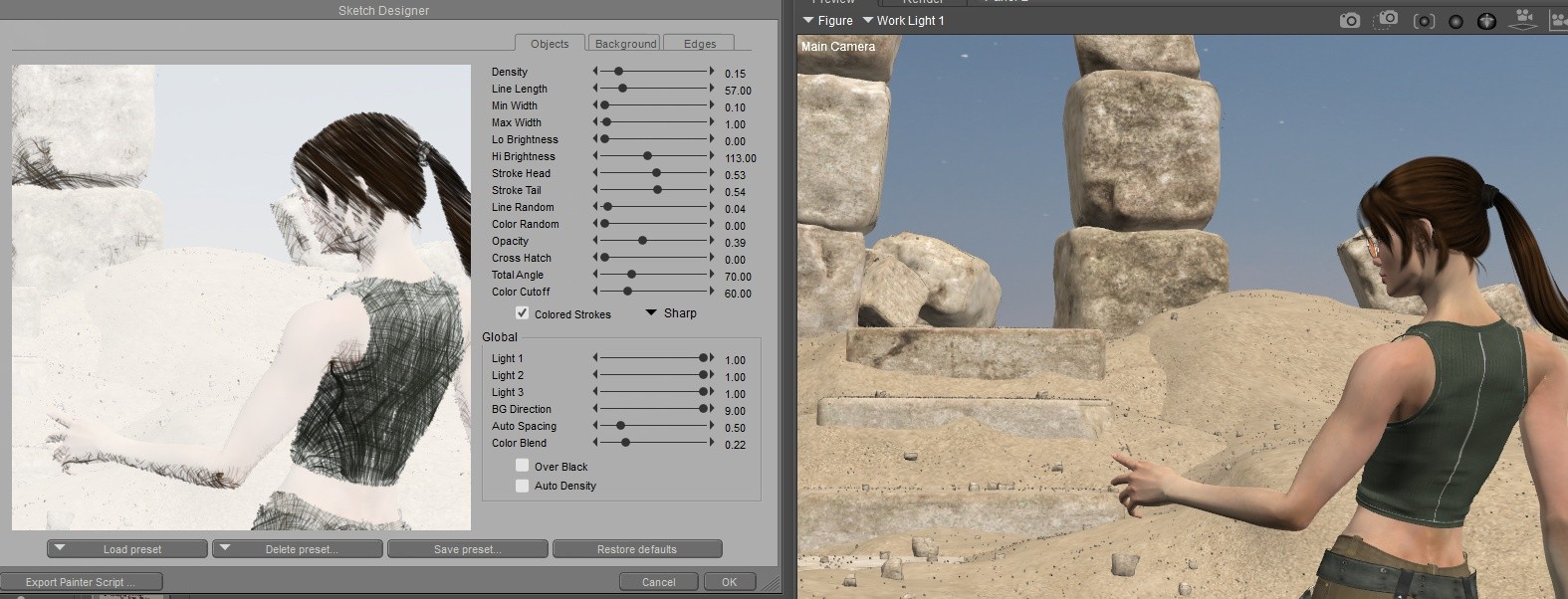
There are three tabs that control the appearance of scene objects, the background, and object edges. For now, let’s focus on the Object tab.
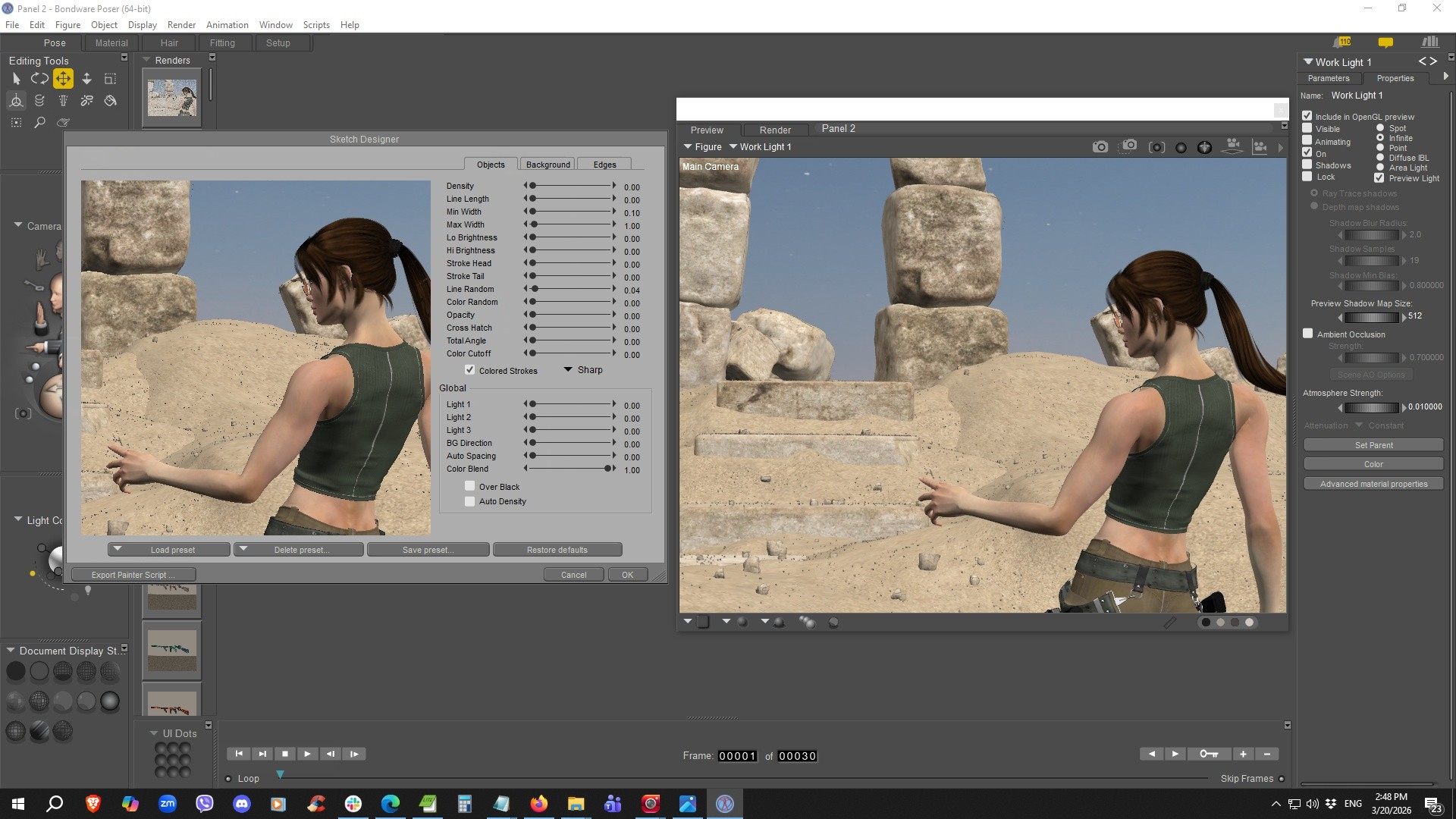
To better understand how each parameter affects your results—and to begin developing your own custom presets—it’s helpful to start with a clean slate. Notice that everything is set to zero except for Color Blend, meaning nothing has changed from the Preview window.
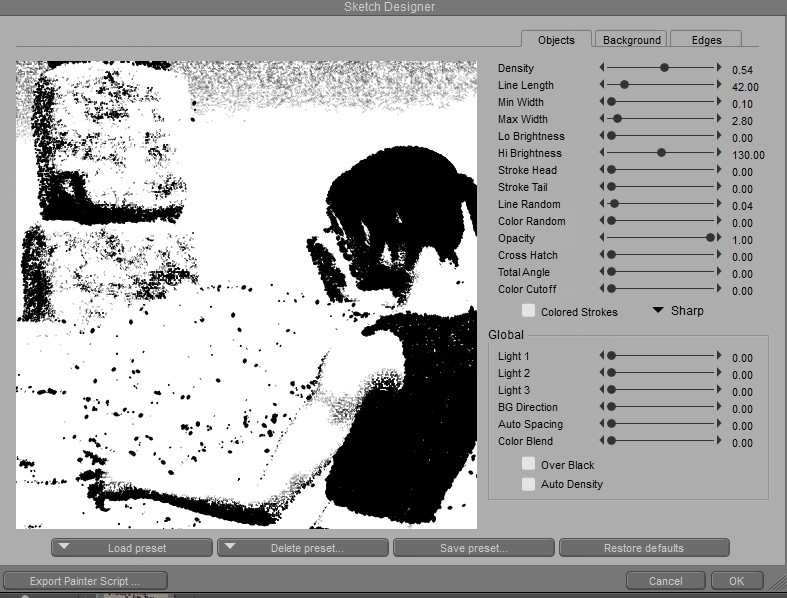
From here, you can begin experimenting by increasing Opacity, Density, Line Length, Min Width, Max Width, Hi Brightness and the other parameters.
Continue refining these settings until you achieve the look you want.
Once you’ve reached a result you’re happy with, simply save it.
Continue refining these settings until you achieve the look you want.
Once you’ve reached a result you’re happy with, simply save it.
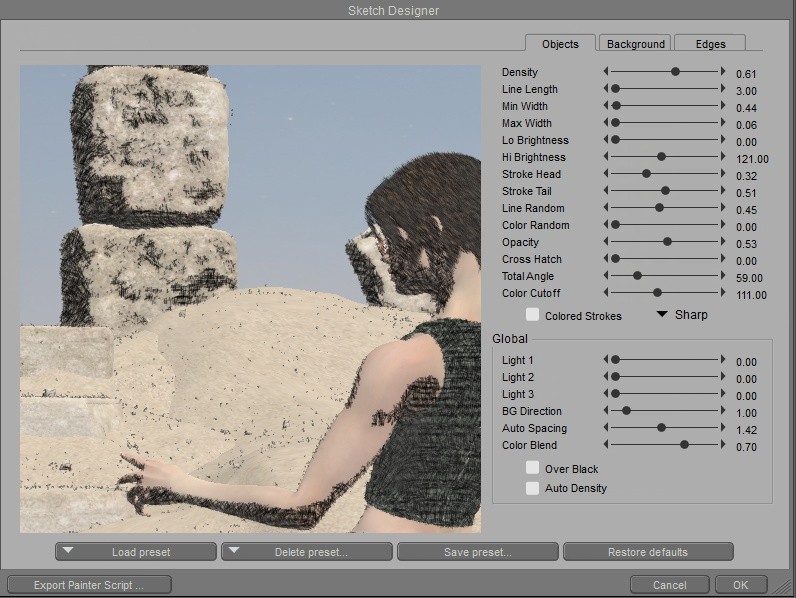
For a detailed explanation of each of the Sketch Parameters please refer to the Poser Manual:
Sketch Designer
Sketch Parameters
Next up we take a look at another visual style - stay tuned!