.png)
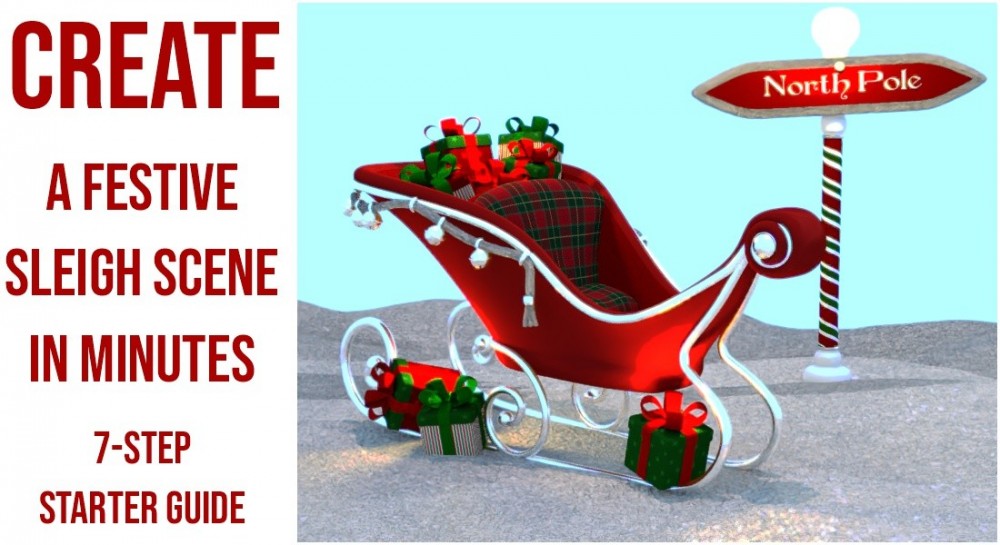
Creating a warm, festive render doesn’t have to be complicated — sometimes all you need is a snowy base, a sleigh full of presents, and a few thoughtful lighting touches.
This quick 7 step guide walks you through building a cozy winter scene using the sleigh and presents freebie*, with simple techniques anyone can follow. Whether you’re brand new to Poser or just looking for a fun seasonal project, this walkthrough will help you set the stage, add depth, and bring a little holiday magic to your workspace.
1. Load the Snow Ground
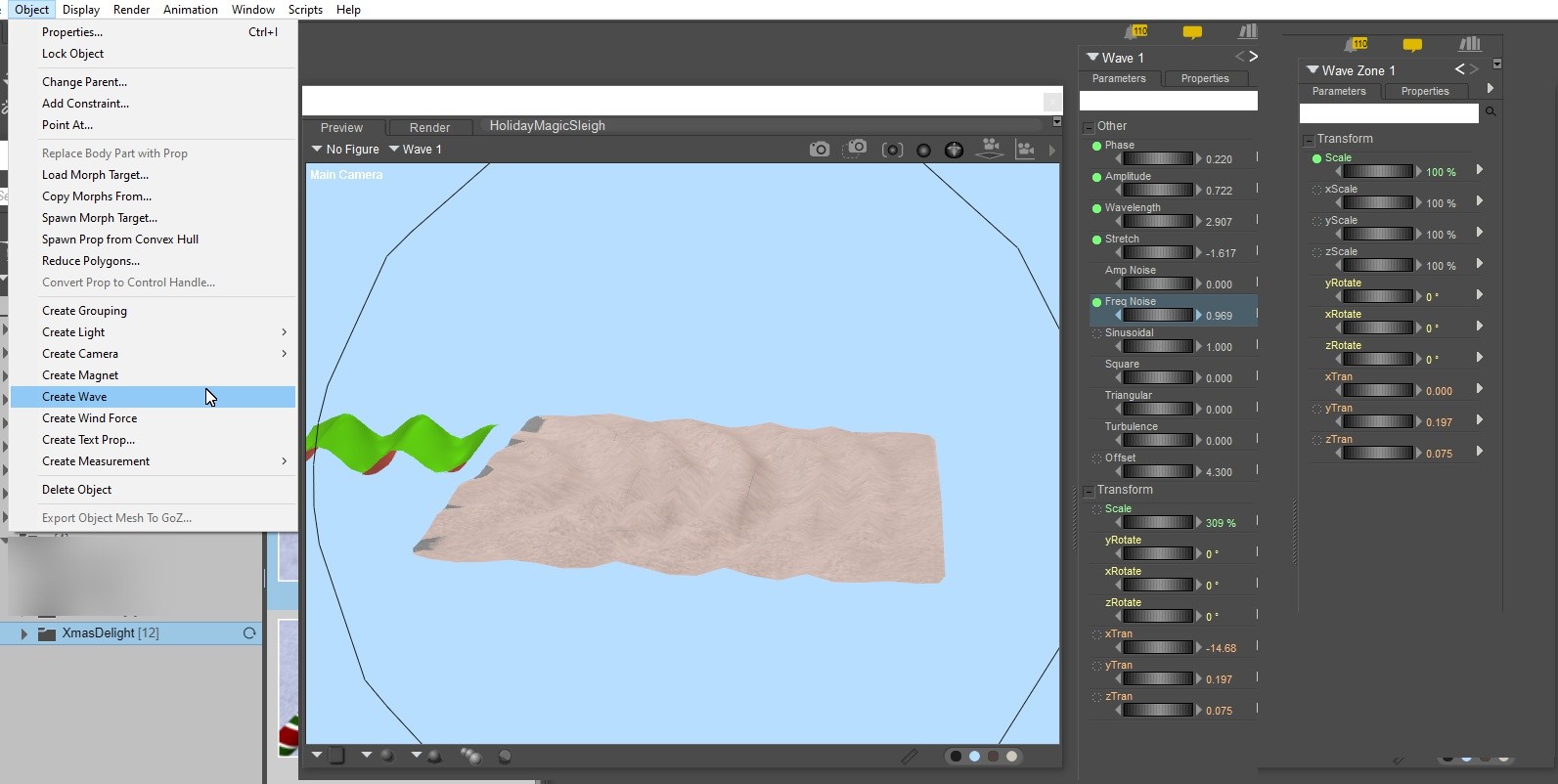
Start by loading the Snow prop as your base. With it selected, use Object → Create Wave to add gentle variations to the surface. A little unevenness goes a long way toward making the scene feel natural. The wave prop has dials to adjust and the Wave Zone prop can be tweaked to affect specific areas in your scene.
2. Shape the Distant Snow
Load a second Snow prop, scale it to cover the back third of your ground, and use the Morph Tool (Pull) to sculpt soft, distant snow mounds. This adds depth without much effort.
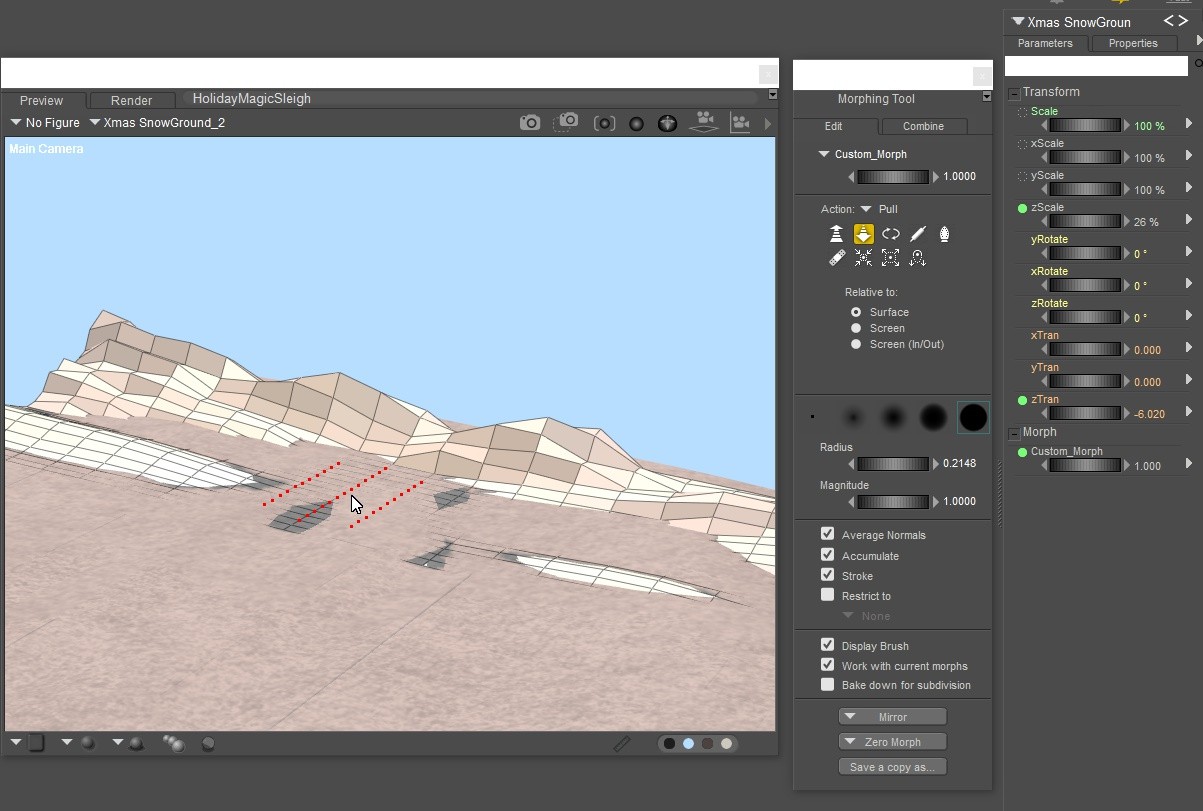
3. Add the Sleigh and Background Props
Drop in one of the sleigh‑and‑presents presets and position it where you want it. If you select Xmas Santa Sleigh, all the presents are already parented, so everything moves together—super handy for quick adjustments.
4. Frame the Scene
Bring in a few simple props—trees, a signpost, a lamp, anything you like—to frame the sleigh and build a sense of space. A couple of well‑placed items can make the whole scene feel more inviting.
5. Set the Winter Sky
In the Material Room → Simple Tab, choose Color and set a soft light‑blue tone for your sky. Turn on Light Emitting Background so it gently brightens the whole scene.
(Please note that this simplified Background editor is a feature only available in Poser 14)
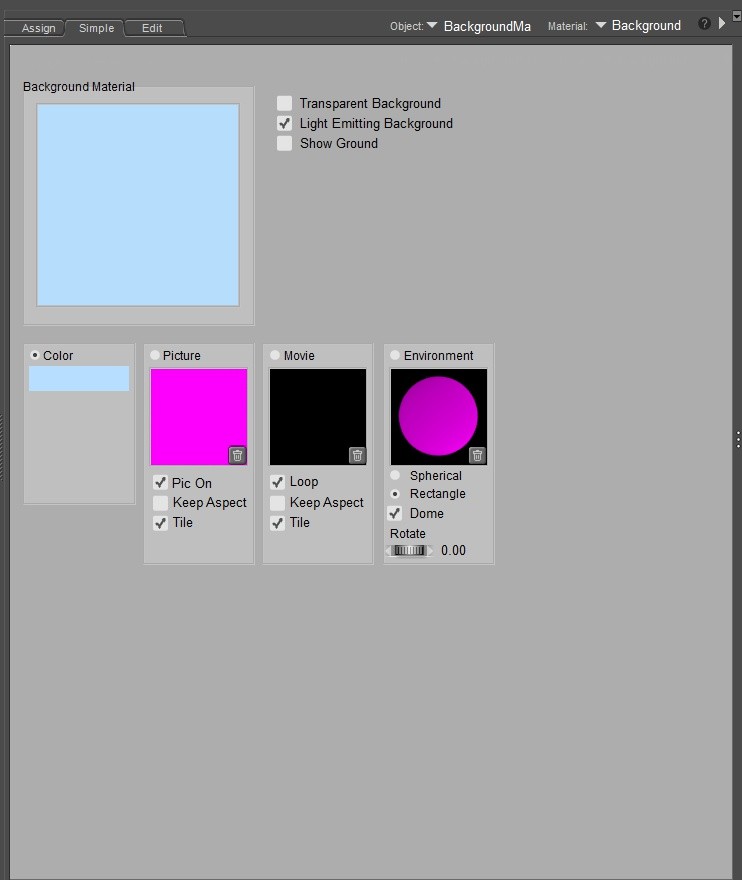
6. Light It Like a Holiday Card
Use your cool sky light as the base, then add:
A warm infinite light at around 50% intensity
Tiny warm point lights above the gifts or anywhere you want a magical glow
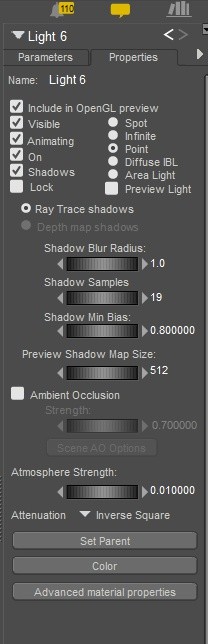
Create one point light, set it to Inverse Square in the Properties panel, lower the intensity to about 10%, then duplicate it as needed from the Edit menu. Scatter these little warm accents wherever you want that cozy sparkle.
A warm infinite light at around 50% intensity
Tiny warm point lights above the gifts or anywhere you want a magical glow
Create one point light, set it to Inverse Square in the Properties panel, lower the intensity to about 10%, then duplicate it as needed from the Edit menu. Scatter these little warm accents wherever you want that cozy sparkle.
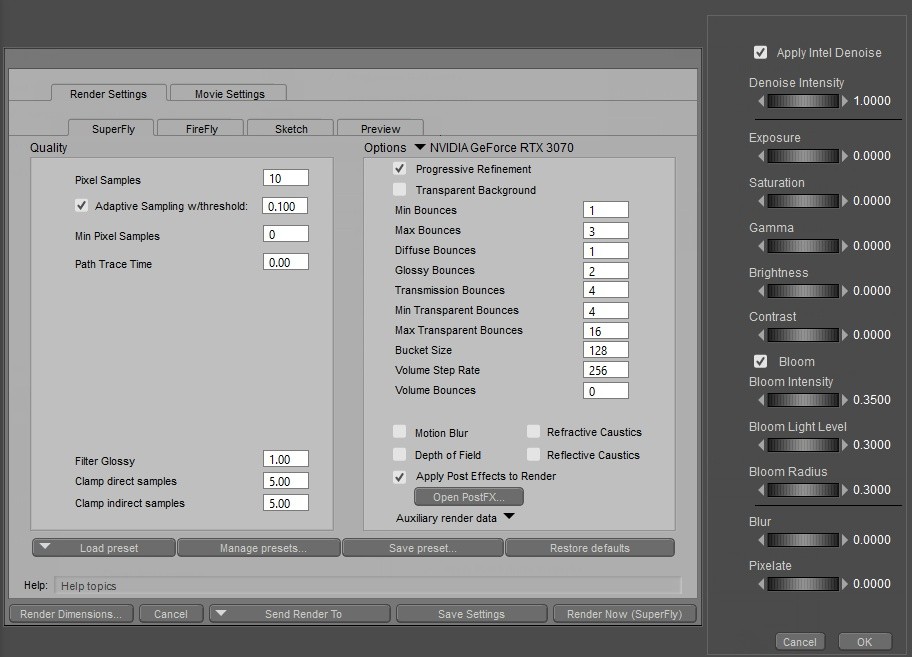
7. Add a Touch of Magic and Render
Open the PostFX panel and enable Denoising and Bloom. Do a few quick test renders to dial in the bloom strength, then hit your final render and enjoy your festive scene.
It’s amazing how a few simple steps can turn an empty workspace into a cozy winter moment, so go ahead and use these suggestions but make it your own. Whether you add characters, change the lighting, or build a whole snowy village around it, have fun exploring and creating.
From our Poser community to yours, happy rendering and warm holiday wishes.
* This tutorial uses the following product to illustrate some helpful tips: Xmas Delight - Poser Props.
Scene created and rendered in Poser 14.